
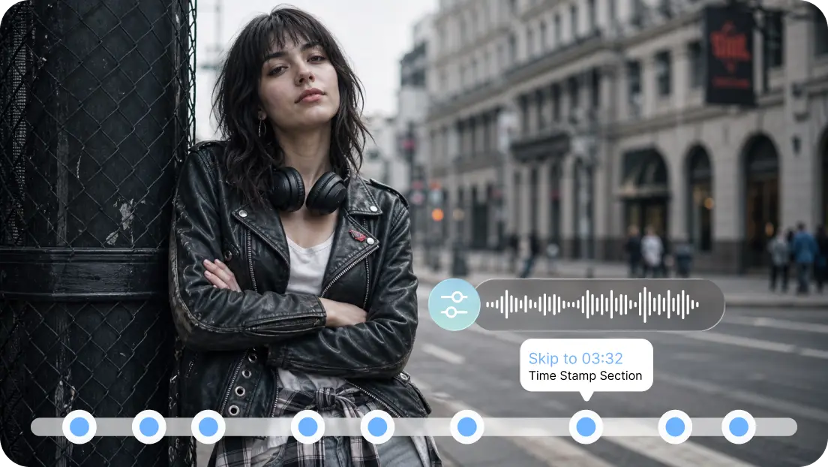
Multiple translations of one video can help increase its appeal while maintaining a familiar personality. Voice cloning ensures that recognizable voice qualities are maintained in the local versions. Pippit combines voice selection, dubbing, translation, synchronization, captioning, and editing in one workflow. This helps to minimise re-recording of messages when they have to be translated into different languages. It can be used for product demos, tutorials, product courses, and social content. Use your own voice or get clear permission to use another person's voice.
What Makes Voice Cloning Useful for Video Dubbing?
A voice can be duplicated and sound the same in different language versions, in terms of tone, rhythm, and voice. That uniformity can make for easier identification of the creator of each localized video. AI dubbing also syncs translated dialogue with voice timings and video pacing. Translation is the process of converting a sentence from one language to another, which may alter the length, accents, emphasis, and pronunciation. You can therefore feel more connected to a customized voice as opposed to an unrelated stock voice. Pippit has the ability to assist in making realistic voiceovers and to support multilingual video production. Nonetheless, it is important to review generated speech carefully prior to publication. Verify names, numbers, technical terms, emphasis, and unusual pronunciations. Technically correct words could sound awkward, and that's why natural delivery matters.
Prepare Your Video and Voice Before Starting
Use an easy-to-understand video with a good audio source and a minimum of background noise. Clean audio provides a better foundation for an accurate transcribe and timing for the dubbing process. Write the script in a way that it can be translated to maintain the same meaning and message as the original. When related generation workflows demand appropriate video assets created by AI, SeedAudio 2.0 can be taken into account. Ensure permission for all voices, video, images, music tracks, and audio elements. Next, select the target languages and platforms, and create localized versions. Think ahead about subtitles, aspect ratios, pace, and significant on-screen elements. Having a structured source will help with future sync, editing, and QA.
Clone and Apply Your Voice With Pippit's AI Dubbing Workflow
Use a custom voice to avoid using unrelated built-in voices when a personal identity is important. Be explicit about the dialogue that is intended, so that the generated speech is appropriate for the desired dialogue. Pippit's dubbing workflow can be used in conjunction with video timing and translated scripts for voice generation. Timing of voice is important since each sentence should match the appropriate visual sequence. A dialogue that is short and clearly structured can help errors to be easily spotted during review. Pay attention to any unnatural pauses, repeated sounds, incorrect emphasis, or words that need correction. Check the localized version with the source before it is published publicly. This is a review that safeguards significance and supports consistency for the duplicated voice.
Steps to Clone Your Own Voice And Dub Videos Using Pippit's AI Dubbing
Step 1: Set Up Your Dubbing Project
- Sign up for Pippit using your Google, TikTok, or Facebook account.
- Open "More" from the left menu and select "Video generator".
- Choose an AI model, such as Dreamina Seedance 1.0, Dreamina Seedance 2.0, Dreamina Seedance 2.0 Fast, Dreamina Seedance 2.0 Mini, or Dreamina Seedance 2.5.
- Enter a detailed prompt for the video. Add the dialogue or dubbing script in the dialogue box.
- Choose the video length, language, subtitles, and aspect ratio.
- Click "+" to upload reference images or videos from your device, phone, Dropbox, or a link. You can also choose available assets.
- Click "Generate" when everything is ready.
Step 2: Create the Dubbed Video
- Pippit automatically creates the video from your prompt and reference media.
- The AI manages transitions, pacing, captions, avatars, voice, lyrics, and visual enhancements.
- Review the generated video draft.
- Click "Download" to save the video, "Regenerate" to create another version, or "Edit more" to open the editing interface.
- Edit captions, add text, and adjust size, color, alignment, filters, and effects.
- Add background music, remove backgrounds, and fine-tune the visuals.
- Click "Export" when your video is ready.
- Select "Publish" for TikTok, Instagram, or Facebook, or choose "Download" to save it with your preferred format, resolution, frame rate, and quality.
Make Dubbed Speech Match the Video Naturally
Natural dubbing is more than just translation from one language to another. Synchronization should link the delivery of the speech with mouth movements and timing of the scenes. Translated sentences can be shorter or longer than their original counterparts. Thus, pacing adjustments can be used to ensure that speech fits the visual sequence. Closely monitor proper names, brand names, technical terminology, numbers, and unusual words. When the pronunciation is not as expected by the viewers, captions give another layer of clarity. Pippit allows for caption creation and editing, enabling viewers to follow translated dialogue more easily. This same focus on AV alignment can be beneficial for AI MV workflows.
Polish the Dubbed Video Before Exporting
Do not check only isolated sentences after dubbing, but check the whole video. Pippit's editing features include cutting, trimming, splitting, resizing, and reframing clips for various platforms. Captions can be moved, scaled, aligned, and adjusted to be more readable. Other visual elements like text, filters, transitions, animation, background, etc., can also enhance presentation. For videos that are capturing specific content, background removal and replacement can be useful to meet various creative needs. Suitable footage can also be further refined with face retouching, camera tracking, noise reduction, and color adjustment. Maintain editing in line with the original message and voice style. Prior to export, view the full version with audio and subtitles.
Expand One Voice Across Multiple Languages
Multiple versions in different languages without the need for re-recording the same message. Pippit can be used in multilingual workflows with English, German, Chinese, Spanish, Arabic, French, and Korean. These versions can be used for product demo videos, tutorials, explainer videos, courses, and social videos. Educational and promotional materials can be more accessible for an international audience with localized voiceovers. Different pacing might be needed for each language as translations will not be word-for-word. Don't assume that if a piece is successful, it'll be equally successful in other versions. Each version can then be localized as desired with the same voice providing continuity.
Conclusion
Person voice cloning can be used to merge an individual voice with the efficient creation of video content in other languages. Pippit integrates dubbing, sync, captions, editing, and exporting in a real-world creative workflow. The same source video can then be used for multiple experiences that can be localized, with less repeated video recording. The best ones still need to be checked by man in terms of pronunciation, timing, translation, and natural delivery. Review all versions prior to publication, particularly if names or technical jargon are used. However, when used responsibly, AI voice dubbing can contribute to making valuable video content accessible on a global scale.